Once your Shopify store is up and running, it becomes much easier to operate well when sales data is tracked in a structured way. Monitoring orders, fulfillment, and store activity helps you make better decisions and respond faster to operational issues.
As order volume grows, managing store data manually becomes harder. Exporting orders, building formulas, and maintaining spreadsheets across multiple stores can quickly turn into a fragile process. Without a reliable system, teams are more likely to miss issues that lead to customer frustration, refunds, and chargebacks.
UpToSheets gives you clearer visibility into Shopify order data through Google Sheets. Below is a simple walkthrough for setting it up.
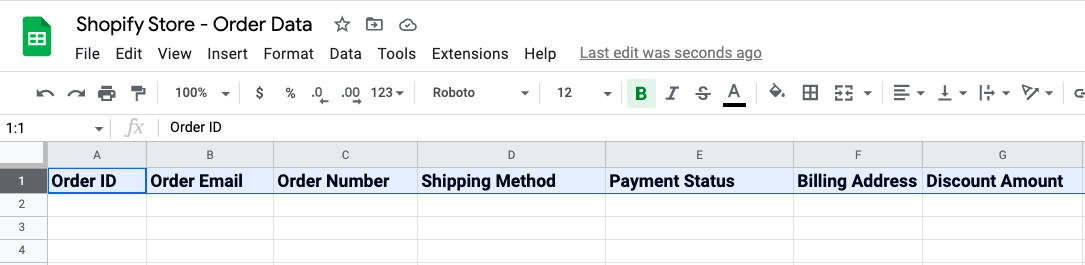
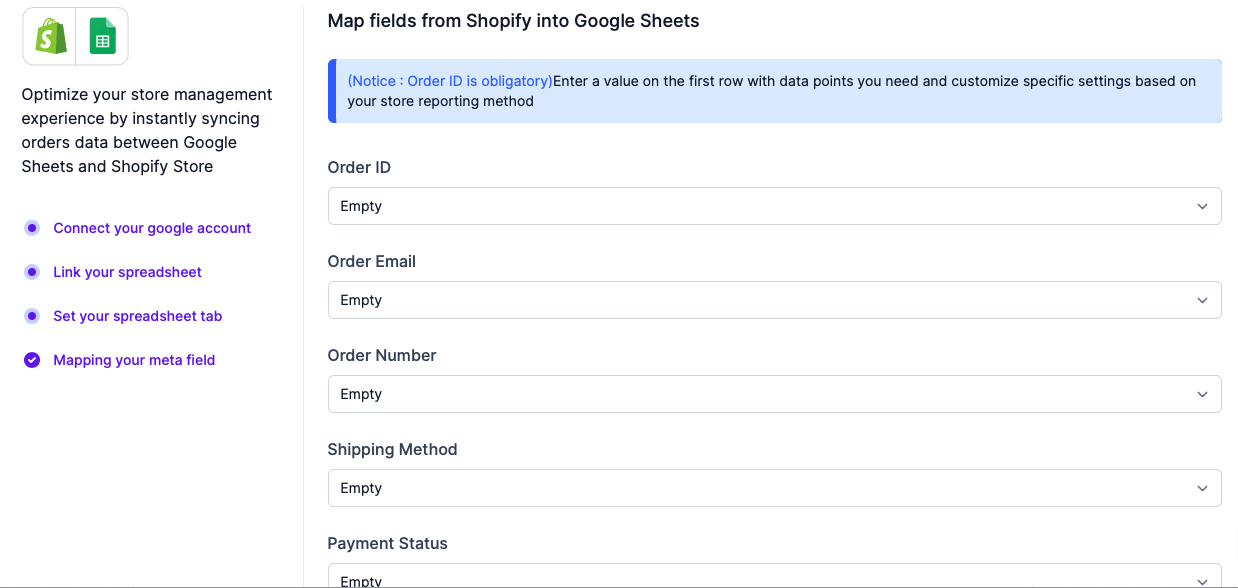
Start by creating your spreadsheet. Add the column names you want to map in the first row. The Id field is required. Include any additional fields you want to track from Shopify.
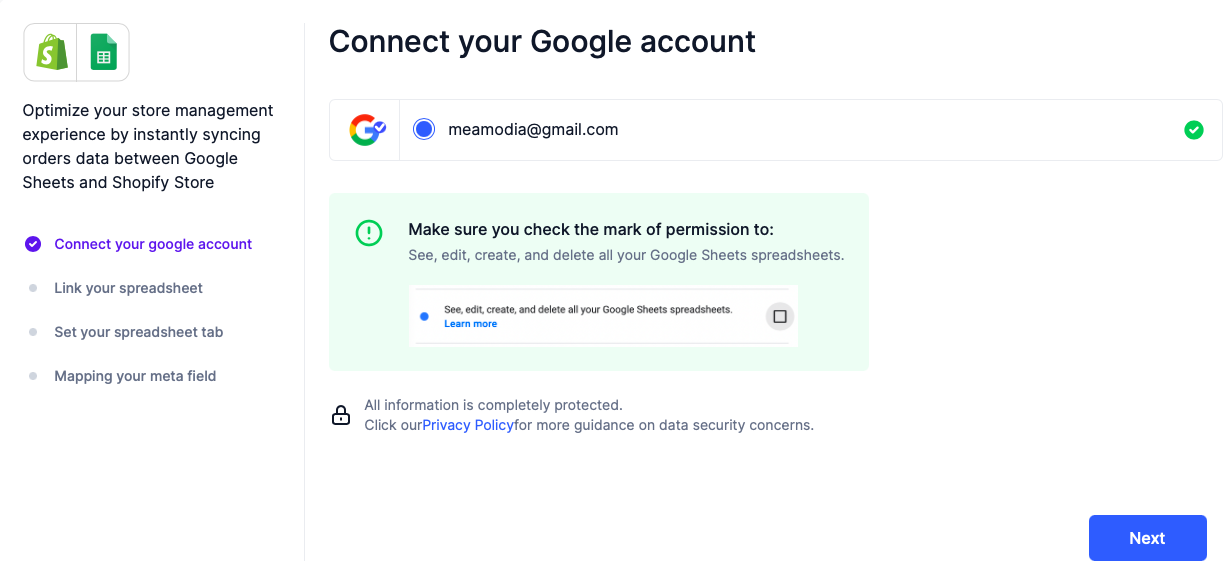
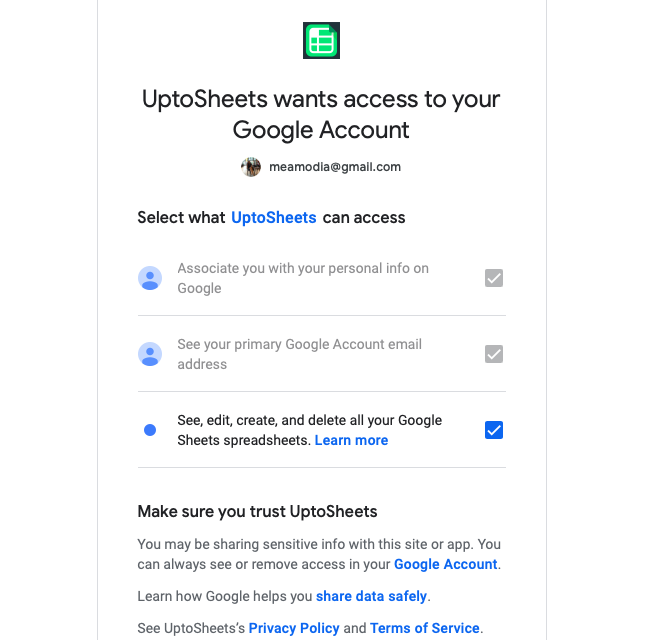
Step 1: Connect your Google account and make sure all required permissions are granted.
Screenshot 1
Screenshot 2
Step 2: Link your spreadsheet and copy the full spreadsheet URL.
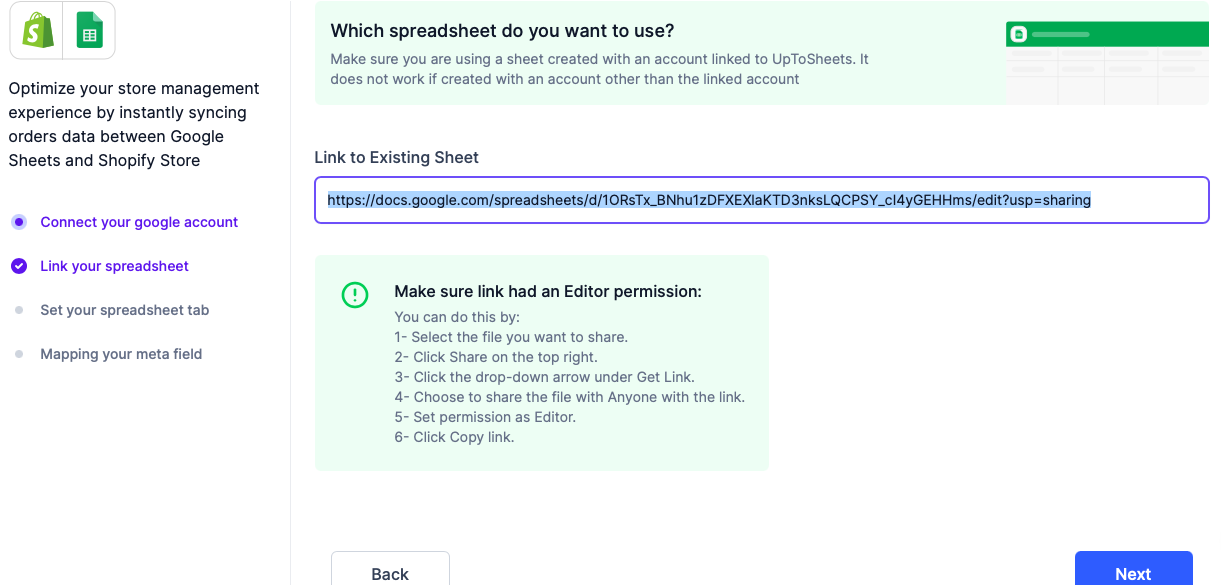
Make sure the sheet has editor access enabled.
The Google account you connected in the previous step must have editor permission for the sheet you linked.
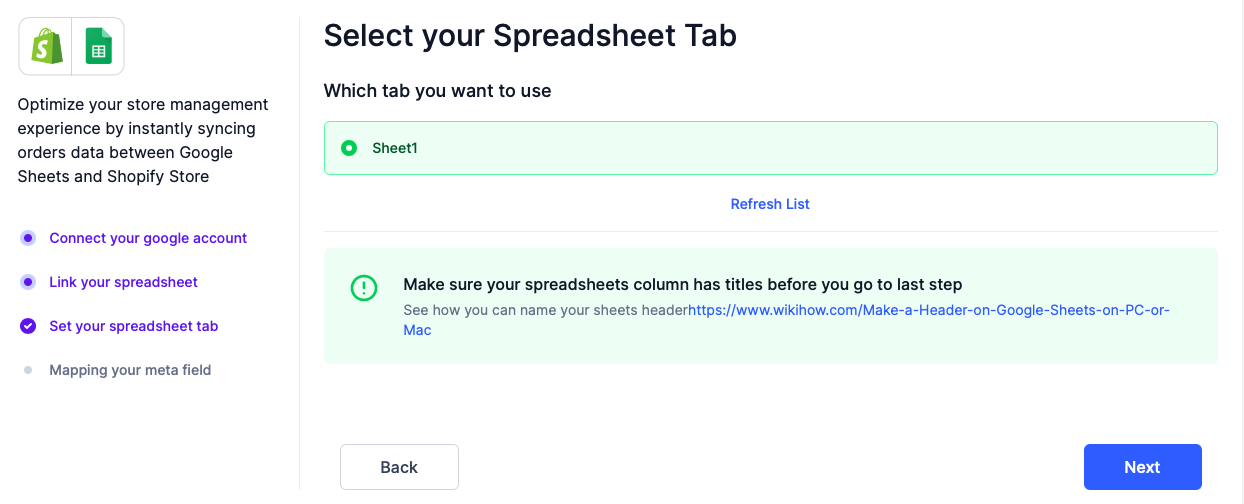
Step 3: Select the spreadsheet tab that contains the values you created, for example sheet1.
Step 4: Map your Shopify order data. UpToSheets lets you choose the fields you want to generate. If a field is missing, contact us and we can review it. You can also use the refresh button to reload available data fields. When you are done, click Finish.
UpToSheets special feature: Use the Back In Time feature to select a previous date range and retrieve older order data.
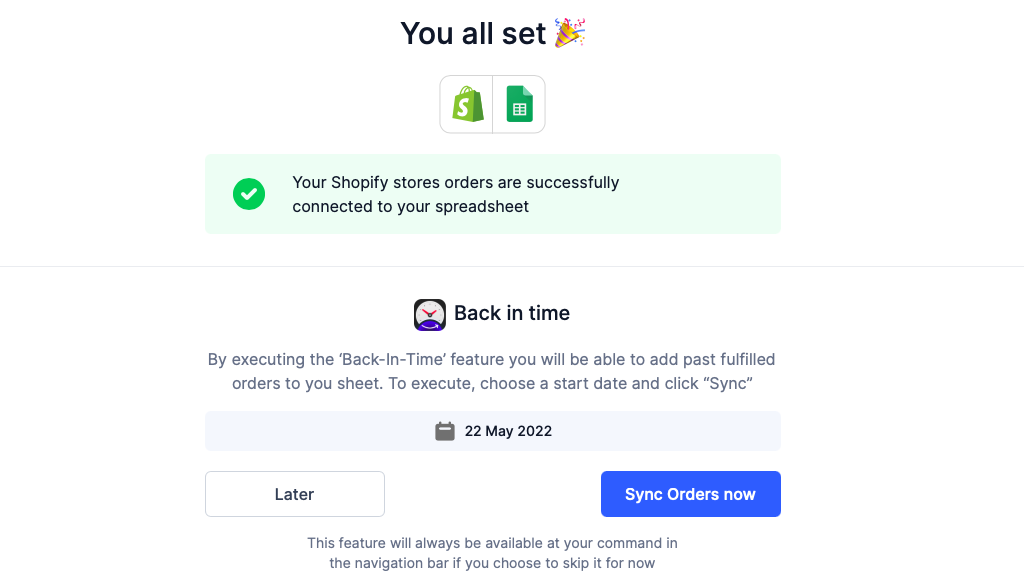
Once set up, UpToSheets helps you monitor Shopify operations from a spreadsheet workflow that stays current.
Each time a new order matches your conditions, UpToSheets sends the data to the corresponding columns in Google Sheets, giving you real-time visibility into store activity.
Why use UpToSheets to link Shopify to Google Sheets?
UpToSheets exports Shopify orders into Google Sheets and helps organize them in a way that suits your process. That can support supplier communication, operations tracking, reporting, and day-to-day order management.
With an automated setup, teams spend less time copying data manually and more time monitoring the metrics that matter.
Final thoughts
Monitoring your sales process well creates better decisions and fewer missed opportunities. A centralized sheet of store order data gives your team a clearer view of what is happening and where you can improve.
Get UpToSheets directly from the Shopify App Store: https://apps.shopify.com/uptosheets
Join our affiliate program:
https://platform.shoffi.app/signup/affiliate'app=uptosheets and start earning passive income with us through recurring commission.
If you need help integrating UpToSheets or understanding the value of connecting Shopify to Google Sheets, contact us and we will be happy to help.